The Dev Guy

The Dev Guy

Tuesday, February 23, 2016

Practical Guide to SQL Maintenance Plans for GP and SL implementations


Goal 

The Goal of this is to convey to non-dba administrators, developers and consultants the need for SQL Server Maintenance Plans and some practical ways to implement them and why. I’m going to focus on Dynamics SL and GP but this can be for any implantation of SQL. Mostly focused on small to medium sized applications.  

SQL Server has become so easy to install that some key functions are overlooked or incorrectly implemented, just by ignorance of the need for them. The users installing are often not DBAs and don’t understand core concepts of managing and implementing a database server. I can’t count how many times I have been called in a year after implementation and we need to restore to a point in time and can’t or even more common and worse, there are no backups at all.    

After you get SQL Installed and configured properly for your product, you need to immediately take steps to insure the stability of the SQL Server Install, the safety and proper operations of the Dynamics SL databases and to protect the data.  

My Goal here is to discuss the creation of a maintenance plans and what options I select and why.  There will be follow up blogs on Index Management in SQL and Scripts to shrink transaction logs when needed and if appropriate.


Environment

SQL 2012 or 2014 is installed.  OS is Windows 2012 or better.

The SQL Server Install is Standard Editions.

Issue

            Installing SQL is not enough to protect your data. You need to protect your install and data from many adverse events that can at least delay core mission critical access to your data and at worst cause complete loss of core mission critical data. Just to help you understand some of the things that can sneak up and affect your data:

1)     Log files not being managed properly can fill up drives over log periods of time

a.      Lack of space can cause corruptions in the database

2)     Poorly written code or other events can cause corruptions in data

3)     Hardware failures can corrupt data (bad sector on disk)

4)     Hardware failure can take down server

5)     Hacker attacks can take out server or corrupt data

6)     Consultants not properly backing up data and running bad SQL statements can corrupt data

The list goes on. YOU MUST IMMEDIATELY on installation of SQL and creation of database implement processes to protect you from the above events and more.


Resolution


Maintenance Plans provide easy to follow wizards and tools to manage protecting your data.  But first you need some prep:

1)     Coordinate with bigger team at your clients organization – Network backups and online backups of SQL need to be figured and in sync with what you do. In todays world backup of images also.

2)     Make sure tools needed for plans to run are installed and setup to restart.


Maintenance Plans need to be used in coordination with network backups and other backup software, like online backup tools like Backup Exec and others.  We are making some basic assumptions with my plan, there is no online tool backup and network backups of the sql server happen at 1 AM and usually are finished at 1:30 AM.  You will need to coordinate these facts with network administrators.  Why? Because you will want to have backups created before 1 AM so that network backups grab the latest of the machine.  If you are doing online backups through backup exec you may want to not keep backups on the server older than a day since it’s fairly easy to grab a days’ backup from that software if needed.   You have to consider these things before you even start. Make sure you know when network backups happen and if an online backup tool is being used.

            Next you need to make sure you have tools in SQL installed and running that are needed. Specifically I am talking about SQL Server Agent. Make sure it is installed and that it is setup to automatically start when the machine is rebooted.  Without SQL Agent you have no plan running and this whole enterprise is useless.   To make sure just launch SQL Management Studio and drill down to SQL Agent and check its status


Also you can right mouse and select properties to make sure SQL Agent auto starts on reboot


            Now we get to the actual plan. There are many ways and methods to manage even maintenance plans. This is a suggested path. But I give the reasons when appropriate so you can make your own call on the throttle of parameters based on your situation.  There are two ways to create a plan:

1)     Just go into SQL Management Studio and under maintenance plans just right mouse and select new

2)     Go into SQL Management Studio and under maintenance plans, right mouse and select the wizard. I always use the wizard, it reminds me of the steps I can do and just makes it easy to create a plan.

The plan itself can perform these actions:

1)     Verify Database Integrity – Checks if the structure and content of the database is intact. This needs to be done nightly. You want to know ASAP if your data is corrupt.

2)     Shrink the Database in physical size if possible – Shrinks the database files down if room is there. You NEVER want to do this. Databases get to the size they need. Of course if you move or purge data then you want to reclaim space, but that is not the norm. Reclaiming space when needed is a costly process and constant shrink and grow of files can lead to fragmentation and possible corruptions. Be careful here.

3)     Reorganize Index – This task will leave the index but reorder the data in the index. This is less costly then then next option – delete and recreate. With either reorganize or rebuild it should be only when the index is fragmented to a level that makes sense. I use a stored procedure for this and never check either option.

4)     Rebuild Index – This will delete and recreate the index. Costly in large databases and should be done sparingly. I never check this option, I Use a stored procedure to perform this.

5)     Update Statistics – This will update statistics which are used in creating query plans. Statistics can greatly impact performance. I do this nightly.  

6)     Clean up history – deletes out history and logs of backups form system tables. I keep as much detail as long as I can. Keep at least a week or two. More if you can. Logs tell a history of problems.   

7)     Execute SQL Agent Job – This will execute SQL jobs. I use to run my Stored Procedure for index management.

8)     Full Backups – perform a full backup on the selected databases. You need full backups daily if you can. Of course it depends on space. But if you don’t have room for a nightly backup then you need to rethink the size of your drives and where you are backing up.

9)     Differential Backups – perform differential backups (only changes since last backup). Differentials are used in cases when full backups take too long or you have very little space. Either way, I often don’t do differentials. In the Mid to smaller dynamics space, like GP and SL the size of the Databases don’t require differentials.

10) Transaction Logs backups – perform transaction log backups. Transaction log backups are key to a disaster recovery plan. It allows you to restore to a point in time. All application databases should be on a full recovery model NOT simple and should have transaction log backups performed often and extended beyond hours of business to properly clear the logs.

11) Maintenance Cleanup Tasks – this will delete backup files when you tell it to. Under our case outlined, I keep 3 days worth of backups.   This will vary. You need to consider that sometimes you need to not just keep last nights backup but a few days back because it takes a long time to get the right tap and pull the backup off tape or off site. You may just need to pull two days ago to restore and pull a table back that someone deleted by accident. My goal has always been 5 days if I can, 3 preferred but as often as space allows.


I must digress from actual plan creation to discuss Transaction Log backups. Transaction Logs are where data gets written first in a database. Then there are periodic commits of data to the database in what are called checkpoints. Depending on how you have your database setup – recovery model specifically, the log behaves differently. Using simple recovery model means that data gets pushed immediately to the database. The log stays small and holds nothing. Backing it up is useless. If you use Full recovery model then data stays till the checkpoint happens. Backing up the Transaction Log allows you to recover to a point in time, say 9:31 Am on Friday.  Clients expect this. Plan for it.

In using this model you must manage the size of the log. In theory if you keep putting data in a log and check point moves data and you keep posting new data on top. Think of it as a game of Jenga where you pull sticks out from a pile, but at the same time folks are piling new sticks on the top. Because day to day operation is constantly piling data, the check points get messed up and some data piles up there. The log grows to match. You need to have a backup in the evening when all are gone to get the log to catch up and clear out. This will ensure that next day, the log is empty and plenty of room to pile new data.

Even when you do this there are times when the log still gets bigger. You need to be careful to just shrink the log because it will break the ability to restore to a point in time. But I am saying that sometimes you just need to shrink the log. You can do manually or through script. But do it after a full backup. I will follow up with a blog about how I usually do that and when.  

Most of the time the log when you backup often and into off hours will just grow to a size that is needed for the client and stay there. That is goal. No costly shrink and grow operations. If you are constantly running out of space consider having hardware increased to match the needs of the client.


Walk through of wizard:


Select separate Schedule for each and give it a name


Select what to do:


For each task select databases it applies to:

For Check Integrity and full database backup select all databases

For Transaction Log backup select all user databases


Create the Schedule for each task. Time things in ways that make sense to fit with other things like network backups. For our example I do this for each task:

1)     Database Integrity: Every Day of week at 8 pm, all databases

2)     Update Statistics: Every Day of week at 8:30 PM, all databases

3)     Clean Up History: every Day of week at 9:00 PM, all full databases backups – extension bak, then I manually create another task under this one when done to do trn files. Every 3 days I delete.

4)     Execute SQL job: Every Sunday I do a SQL agent task that runs my index stored procedure

5)     Daily at 9:30 PM I do a full backup of all databases

6)     Every two hours, every day from 6 to 8 pm I perform transaction log backups on all user databases (keep for 3 days)

7)     Clean up history every 3 weeks.


 Some key parts of my plan:


Key point to remember is when you create through the wizard it has a delete backup screen in the clean up tasks above. You select directory and check to do sub directories for each database but you can only enter one extension - I put bak above. What about the trn files? Well you let it create the plan, you drill down into after and just copy this part and paste then drill in and change bak in one to trn.


Conclusion 


Maintenance Plans in SQL are easy to setup and needed from the start of implementation for a robust and complete recovery plan. It must be coordinated with client needs and other operations like online backups and network backups. It needs to take into account size of files and logs and disaster recovery models needs of the databases.

I will follow with how to manage indexes in procedure and shrink log file without breaking full recovery model.




Monday, June 22, 2015

Upgrading from SL 2011 SDK Visual Studio 2010 to SL 2015 SDK Visual Studio 2013


Goal 

Time has come to move from SL Dynamics 2011 to SL Dynamics 2015. You need to upgrade your VS 2010 projects to VS 2013 and SL Dynamics SDK 2011 to 2015.

Environment

Windows 2012 Server SQL Server 2012 SP 2 and Visual Studio 2013.

Issue

            Upgrade utility leaves a few steps to do. Its not just run and ready to go like earlier versions, and you can’t just open the project in VS 2013 and bam you are done.

You have to run the conversion utility then there are manual steps you have to perform.            


Resolution                                             

            First you need to install the SDK and Legacy Code Utility. They are options on the SL install utility. Must have both.

            Second Run the SL DynamicsSLSDKConversion.exe that is placed in the VT directory under the main SL directory. Then a Code Converter directory holds the exe.

Select your project and run the utility. Note that it does an in-place conversion, back up first. See Image Below


            Third open the project in Visual Studio 2013. You will notice many errors no matter how simple your project was. I’m am going to go through the steps you need to do for a standard sl screen project that you had grids and controls from the vb toolkit in but not much else.  

Manual Steps Listed below:
 

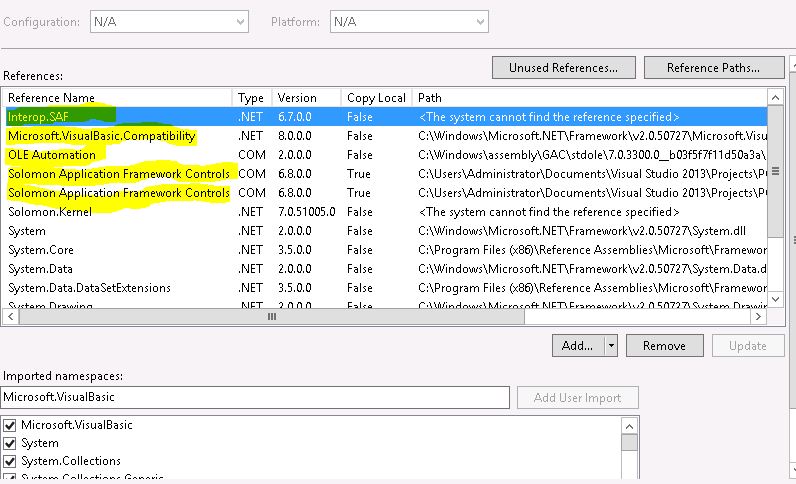
Right mouse on Project (not solution) and select properties.
 

Click on References and click Add
  

Browse to C:\Windows\Microsoft.NET\assembly\GAC_32

a.       Add Solomon.Kernel

b.      Add Microsoft.Dynamics.SL.Controls


Delete OLE reference


Delete VB compatibility reference


Delete the two Solomon Controls Reference


Click on Application Tab


Change Framework to .Net Framework 4.0 Client Profile


Copy Microsoft.Dynamics.SL.SDK.vb to the project directory (I like to have the project with all support files within,  you don’t have to, just reference the right file)
 

Exclude Solomon.VBTools.vb from the project


Add Microsoft.Dynamics.SL.SDK.vb to the project

                 Your project references should like below:


                 Now you should be able to compile.

Conclusion 
          SL Upgrade for the SDK from 2011 to 2015 is done with some manual steps.

Thursday, April 30, 2015

Passing Parameters in Dynamics SL Screen and Insert into Grid


Goal 

You have a SL Dynamics custom screen with a grid. You want to pass parameters to this screen from another screen and, if values are passed, you want to insert a new line in the grid, put the values in it but Not save the line unless the user hits save. 
I recently had to do this where there was a bank feed that had vendor sometimes missing from the file but had a vendor name. So I created a cross walk table that has the bank feed vendor and name and the user  selected vendor id that it should walk to.  The user would select the line with the issue and click a button to add the vendor passed and the vendor name to the cross walk table.   

Environment

SQL 2008, Windows Server 2008 for SL and SQL Server, Windows 7 workstations, and Dynamics SL 2011.

We are developing in Visual Studio 2010. Please see my other post on how to get around the 64 bit issue.

Issue

            The problem is just figuring what code to use to perform these tasks: 
1) check parameters if passed
2) insert new blank line into grid on the fly
3) place values passed into this new blank line 

Resolution                                             

            The Resolution was as follows:
1) use ApplSetParmValue and ApplGetParmValue functions to pass and read the parameters.
2) use Edit_New() sub to insert new blank line into grid
3) use SetObjectValue functions to set the grid to have the values passed
 

Code in Calling Program:

Call ApplSetParmValue(PRMSECTION_VBRDT, "BankVendorID", sBank)

Call ApplSetParmValue(PRMSECTION_VBRDT, "VENDORName", sVendorName)
Code in Browse window Program (this is added to the form load after the detailload of the grid:

Dim sVendorID As String

Dim sVendorName As String

sVendorID = ApplGetParmValue(PRMSECTION_VBRDT, "BankVendorID")

sVendorName = ApplGetParmValue(PRMSECTION_VBRDT, "VENDORName")
 
Code to check if passed and insert line to grid:

If sVendorID <> "" or sVendorName <> "" Then

          
Edit_New(LEVEL0)
 
serr9 = SetObjectValue(txtVendorID, Mid(sVendorID, 1, 10))

serr9 = SetObjectValue(txtVendorName, Mid(sVendorName, 1, 30))
 
End If

The code checks if either of the parameters filled the memory fields.
if so Edit_New is passed the level that the grid is on and inserts a value. The focus is always set to this new line. That's why I chose the Edit_New.
Finally using SetObjectValue set the text fields for the values passed. 
That's it!

Conclusion 


It is relatively easy to pass parameters and add to a grid on the fly, allowing the user to accept or reject the changes before they are saved using the Solomon RDT Toolkit.


Friday, August 22, 2014

Dynamics GP Web Service Install Error: The security ID structure is invalid (Exception from HRESULT: 0x80070539)


Goal 

You are installing GP Web Services and keep getting  an error that rolls back the install. You get an error saying: The security ID structure is invalid (Exception from HRESULT: 0x80070539). 
You need to fix the error and get it installed.  


Environment

SQL 2008 or later, Windows 2008 or later, GP Dynamics 2010 or 2013.

Issue

            The issue of all things is that there is a user in the model database that is not windows authentication based.


Resolution                                             

            Just Delete the user from the Database:
1) Goto Enterprise Manager
2) Drill down to the system databases and then the model database
3) Find the user that is not windows based (NOT THE dbo User!)
4) Delete the user from the database

Then restart the install process.
 

Conclusion 

Web Service Configuration for GP requires that the model database NOT have a user in it that is sql authentication based (login is sql not windows).


Sunday, August 10, 2014

Open Error Log in NOTEPAD after error in Dynamics SL


Goal 

You have created a Dynamics SL 2011 Custom Screen using the Tools for Visual Basic.  Your Screen processes information using the Status Function from the SWIMAPI.dll. The Status Function uses the process screen for SL and allows you to log messages in a log file that is placed in the eventlog folder of SL.  At the end of processing, if there were errors, it will say process is complete and the log file is in that eventlog directory. The filename is generated by the process.  

This is all fine but some users do not go surfing for files. A better solution may be to open the log file in notepad automatically instead of making the user find it and open it.

The goal here is to open the log file created after a dynamics SL process in notepad.


Environment

SQL Server 2008 or 2012  and Dynamics SL 2011.

We are developing in Visual Studio 2010. Please see my other post on how to get around the 64 bit issue.

Issue

            If you are like me, you are very familiar with the Launch function in vba but how to open notepad in vb.net is not something I do all the time. Also knowing the directory and name of the log file, how to get that from SL? This is not difficult just requires some logistics to do.          


Resolution                                             

            In order to accomplish all of this:

1)      I used the pstatus table. This is in all application databases and everytime you log something to a log file in sql, the new file name is saved there in the zfilename field, the screen, user, date and time is stored too

2)      I identify the record by taking the records in pstatus with user = current user (bpes.userid) and processdate = today and screen = current screen (bpes.ScrnNbr) and process time is the latest in the table for all the fields just listed.

3)      Finally I use the System.Diagnostics.Process.Start() to launch NotePad.exe.


The Sub used to open the file looks like below:


Private Sub LaunchError()


Dim d As DateTime = Now


Dim sFile As String = ""

Call SqlCursor(csr_PStatus, NOLEVEL + SqlFastReadOnly)

serr9 = SqlFetch1(csr_PStatus, "Select * from PStatus where userid = "&    SParm(bpes.UserId) & " and PID = " &

SParm(Trim(bpes.ScrnNbr) & "00") & " and  ExecDate = '" &d.ToString("MM/dd/yyyy") & "' and ExecTime in (Select Max(ExecTime) from PStatus where userid = " & SParm(bpes.UserId) & " and PID = " &SParm(Trim(bpes.ScrnNbr) & "00")& " and  ExecDate = '" & d.ToString("MM/dd/yyyy")& "')", bPStatus)

        If serr9 <> NOTFOUND Then

            sFile = Trim(bPStatus.zfilename)

        End If

        Call SqlFree(csr_PStatus)

        If Trim(sFile) <> "" Then

            System.Diagnostics.Process.Start("Notepad.Exe", sFile)


        End If

End Sub


The code I use to launch this sub is:


                ' call final screen (process complete with log file at following location)


Call MessBox(sStuff, MB_OK, bpes.ScrnNbr)


' After user closes the above screen (dialog screen)  check for any errors in ‘ ‘process and if there are then call the laucherror


        If bErrors Then

            LaunchError()


        End If


Conclusion 


It is standard procedure to use the process screen when processing data in Dynamics SL. You use the status call to use it and it helps you log data to a log file in the eventlog directory of SL. The problem is that most users are not savy enough to surf folders for a log file and figure what is wrong. As step in the right direction is to open the file in notepad so the user can easily read it. That is what we do here.


Monday, July 14, 2014

Upgraded Custom Screens from SL 6.5 to SL 2011 get Error 10127


Goal 

You need to upgrade SL 6.5 Screens to Dynamics SL 2011. You run the conversion utility and after opening your screens in SL in 2011, you get a Programming Bulletproof Error 10127. The message gives further text of 2 or more controls have the same name of Form1. And Form1.. You look until your eyes pop out and there is no control with no name let alone two of them.   

Environment

SQL 2012, Windows Server 2008 or Windows Server 2012, and Dynamics SL 2011.

We are developing in Visual Studio 2010. Please see my other post on how to get around the 64 bit issue.

Issue

            The issue is that every time you open the screen after upgrade you get the annoying prompt described above. The screen opens but you have to click to click ok on that message every time.


Resolution                                             


            If you are getting this message then you have multiple SSTabs (Windows.Forms.Controls.Tab) with a grid on each tab. You also have a groupbox on each tab. Groupboxes are used by Dynamics SL to group controls together to go in a Grid.  You don't need a Groupbox to do that in the last tab of SSTab. You have to delete the last groupbox and put the controls directly on the last tab. Highlight all the controls on the last tab (including the spread control), hit ctrl-x (cutting the controls). Hit the groupbox and hit delete key (thus deleting the groupbox), then hit ctrl-c (pasting the controls back on the form). Now recompile and redeploy. No more message.


Conclusion 


            SSTabs in 6.5 had groupboxes around all controls that belonged on a grid. 2011 does the same but with one exception: if a Tab control has multiple tabs, each with a grid on it, then each tab needs a groupbox EXCEPT the last tab. How I figured this out I don’t know…
Things to maybe try that I did not: Add a blank tab and make it invisible.

Thursday, May 8, 2014

.NET Framework 4.0 and Tools for Visual Basic for Dynamics SL


Goal 

You need to use tools in .NET that require the 4.0 framework in a project that uses also the Visual Basic tools for Dynamics SL 2011. I recently ran across this because I was using the infragistic controls for Windows Forms with Dynamics SL custom screens.   

Environment

Windows Server 2012, Dynamics SL 2011, and Visual Studio 10.

Issue

               When you compile the project after changing to .net 4.0 framework you get a File Load error like below.

Problem signature:

  Problem Event Name:                        CLR20r3

  Problem Signature 01:                       ga11100.exe

  Problem Signature 02:                       1.0.5240.29754

  Problem Signature 03:                       536aa6a0

  Problem Signature 04:                       Microsoft.VisualBasic

  Problem Signature 05:                       10.0.0.0

  Problem Signature 06:                       4ba2183b

  Problem Signature 07:                       96

  Problem Signature 08:                       2c

  Problem Signature 09:                       System.IO.FileLoadException

  OS Version:                                          6.1.7601.2.1.0.16.7

  Locale ID:                                             1033

  Additional Information 1:                  0a9e

  Additional Information 2:                  0a9e372d3b4ad19135b953a78882e789

  Additional Information 3:                  0a9e

  Additional Information 4:                  0a9e372d3b4ad19135b953a78882e789


Read our privacy statement online:

  http://go.microsoft.com/fwlink/?linkid=104288&clcid=0x0409


If the online privacy statement is not available, please read our privacy statement offline:

  C:\Windows\system32\en-US\erofflps.txt


Resolution

There is none. Tools for Visual Basic will not work beyond framework 3.5.  So in my case I am walking back a version in the third party.


Conclusion 


Tools for visual basic require you use .net Framework 3.5 or earlier.  Sorry I have no tricks on this but you should know.